Set up the team vault
You will finish with the team's shared vault open in Obsidian, your shared folders arriving, and your own notes syncing back to everyone.
The vault syncs through the EVC Team Relay — our fork of the team-relay plugin, pointed at the
server we run ourselves, not a third-party one. The scripts on this page install ours; the original
plugin has a similar name and will not sync this vault.
You need Obsidian installed, and the names of the shares you were given.
What a share is
A share is one folder of the team vault that has been shared with you — Personal, or a project
folder like RatPG. Sync works per share: your vault holds the shares you were given, not the whole
vault.
The names cannot be looked up before you sign in. The server will not list shares without a token,
so ask whoever gave you access for the exact spelling. It matters — a share is matched as an exact
string, so ratpg will not find RatPG.
The setup script uses these names to create the folders in your vault before the plugin starts. That order is the whole point of it: the plugin can only connect a share whose folder already exists, and a vault missing them signs in successfully and then shows nothing at all.
1. Create the vault
Replace Personal RatPG with your shares. Either run this before you ever sign in, or quit and reopen
Obsidian afterwards — the folders have to exist before the plugin looks for them.
Point --vault / -Vault at the folder you want to work in. It is created if it does not exist.
If you have several shares, both scripts can also read the list from a file — one name per line, #
starts a comment. There is no file to find beforehand; you write it. Pass --shares-file
~/relay-shares.txt on macOS and Linux, or -SharesFile .\shares.txt on Windows.
You should see the plugin version it installed and the folders it created. Signing in is the one step it cannot do for you: your token lives in Obsidian's own storage and is never written to disk.
Add --dry-run / -DryRun to see what it would do without changing anything:
Important
Share names must match the server exactly, including capital letters. A name that differs by case is
accepted here and then fails later with settings reference a path that does not exist.
2. Let the plugin load
The script installs the relay and enables it in community-plugins.json, but the first time Obsidian
opens a vault that has plugins in it, it asks before running any of them:
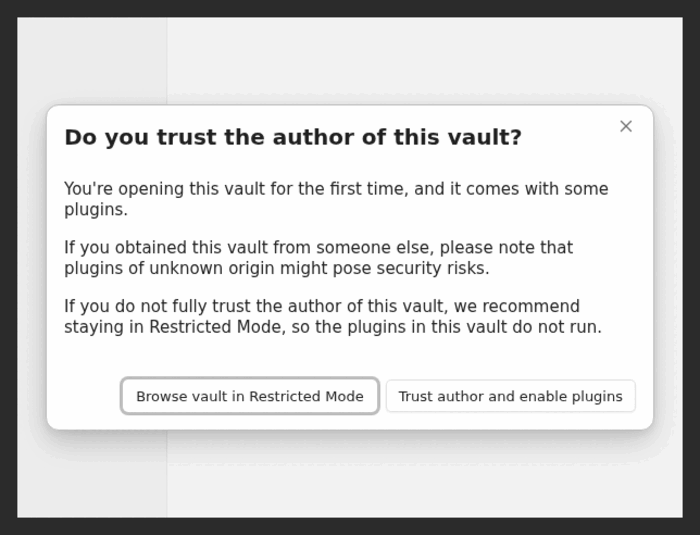
Choose Trust author and enable plugins. This is our vault, so the plugins in it are ours — and until you do, nothing syncs, which is the safe default.
If that prompt does not appear — you have opened Obsidian before, or the vault is not new — turn it on by hand. Open Settings → Community plugins, turn Restricted mode off, then quit Obsidian completely and open the vault again:
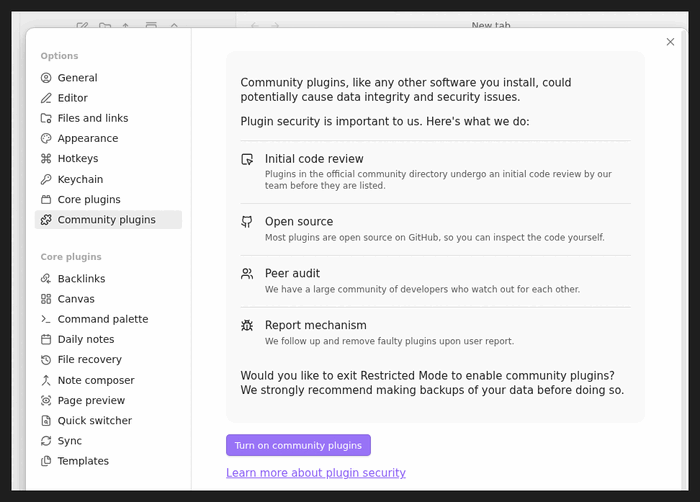
If the relay is still missing from the ribbon after that, see the last table on this page.
3. Sign in
Open the vault in Obsidian, then open the plugin's settings. Either way works:
- Click the plugin's icon in the left ribbon. Its tooltip reads Relay settings.
- Press
Ctrl+P(macOS:Cmd+P) and chooseVirtual Calzone Relay: Open settings.
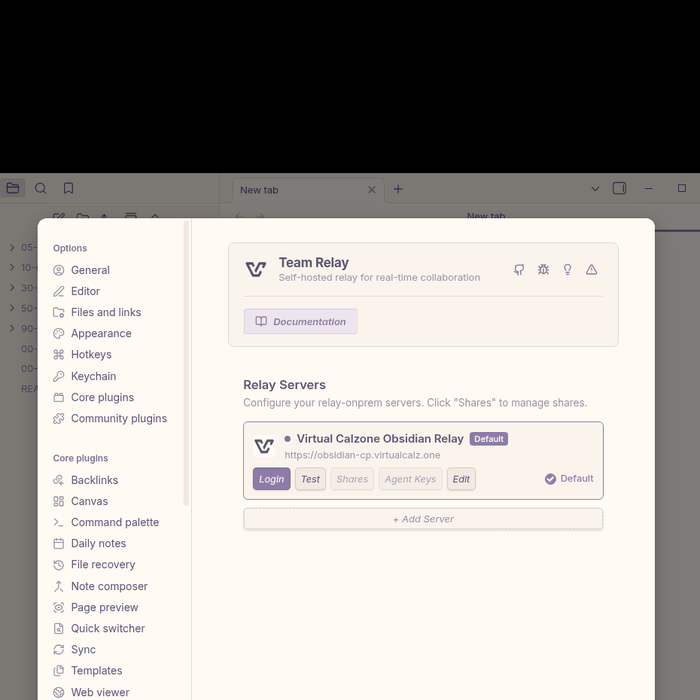
Click Login on Virtual Calzone Obsidian Relay.
Your browser opens Authentik. What it shows depends on whether you are still signed in there:
- Not signed in — the form you used to create your account in step 1. Sign in with Discord:
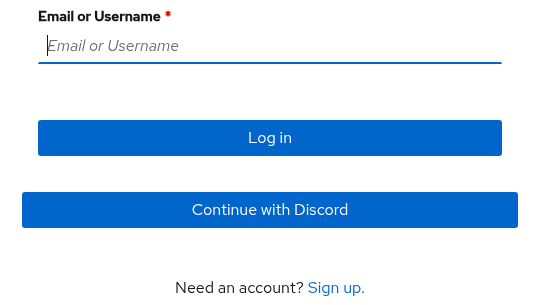
- Already signed in — likely, if you have just done step 1 and not cleared cookies. You may be asked to authorise Virtual Calzone Relay instead, which is a different screen.
Either way you end up back in Obsidian. The server shows a green dot once you are connected.

4. Accept the invites
Open the notification Obsidian shows you and accept it. The shared folder then appears in your vault with a globe icon.
Invitations are not emailed, so nothing arrives in your inbox.
Shares on the relay server lists everything shared with you — the folders you can sync. Each one is bound to a folder in your own vault:
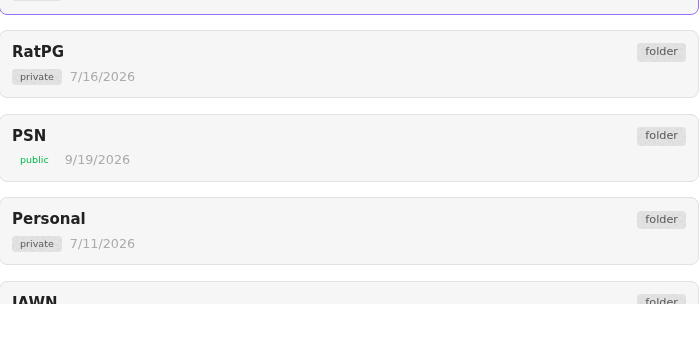
Select a share to open its settings. Local Folder is where it is bound to a folder in your vault, and it says whether it is connected and syncing:

5. Turn on Other files
Turn on Other files for any share that holds .base files.
Connecting a share is separate from this setting. With it off you receive every note and none of the views, and an empty view looks the same as one whose filter matched nothing.
Keep the plugin current
Run the updater in the same shape, substituting update-plugin for setup-vault in the URL.
curl -fsSL https://git.psn.virtualcalz.one/virtualcalzone/evc-team-relay-plugin/raw/branch/main/scripts/update-plugin.sh \
  | bash -s
| Flag | What it does |
|---|---|
--check |
Show the installed version and what would change, changing nothing |
--install --all |
Install into every vault that does not have the plugin yet |
--force |
Update while Obsidian is running |
--ref <tag> |
Install a specific release instead of the newest |
--rollback |
Undo the last update |
iex "& { $(irm https://git.psn.virtualcalz.one/virtualcalzone/evc-team-relay-plugin/raw/branch/main/scripts/update-plugin.ps1) }"
| Flag | What it does |
|---|---|
-Check |
Show the installed version and what would change, changing nothing |
-Install -All |
Install into every vault that does not have the plugin yet |
-Force |
Update while Obsidian is running |
-Ref <tag> |
Install a specific release instead of the newest |
-Rollback |
Undo the last update |
Updates keep your server, token and share bindings.
Next: What is in the vault
If it does not work
Run the checker first. It reports each share as healthy, bound but unhealthy, or not bound at all.
| What you see | What to do |
|---|---|
| Signed in, no shares listed | The share folders were not in the vault when the plugin looked. Re-run step 1, then reopen Obsidian |
| Shares listed but never connected | Run the Relay: Reload relay command, then re-run step 1 |
Notes arrive, .base views do not |
Turn on Other files for that share |
| Red dot, never connects | Sign in again. If it persists, tell us |
| No invite ever appears | Ask whoever is sharing to send it again |
| The relay is missing from the ribbon, or shown switched off | Restricted mode is still on. Settings → Community plugins, turn it off, then restart Obsidian |
| The updater refuses to run, or says files are in use | Obsidian is holding them shut. Close Obsidian, or add --force / -Force |
| Windows: the download fails with a certificate error | Add -SkipCertificateCheck |